What you get: The story behind your numbers — and three things to do next month.
About 3 minutes
Why it matters
Reports turn hundreds of entries into a few clear lessons: what changed since last month, which categories grew, and where your year is heading.
AI insights (where your plan includes them) read your summarised figures — never your raw statements — and give you a short, friendly summary with practical next steps.
How it works
- 1Open Reports. Choose Monthly, Annual or Projections.
- 2Read the AI insights card, if switched on, then “Where the money went” and “Compared with last month”.
- 3Download your transactions as CSV, or Print / Save as PDF.
- 4Press Share with accountant for a ready-made Excel file (next chapter).
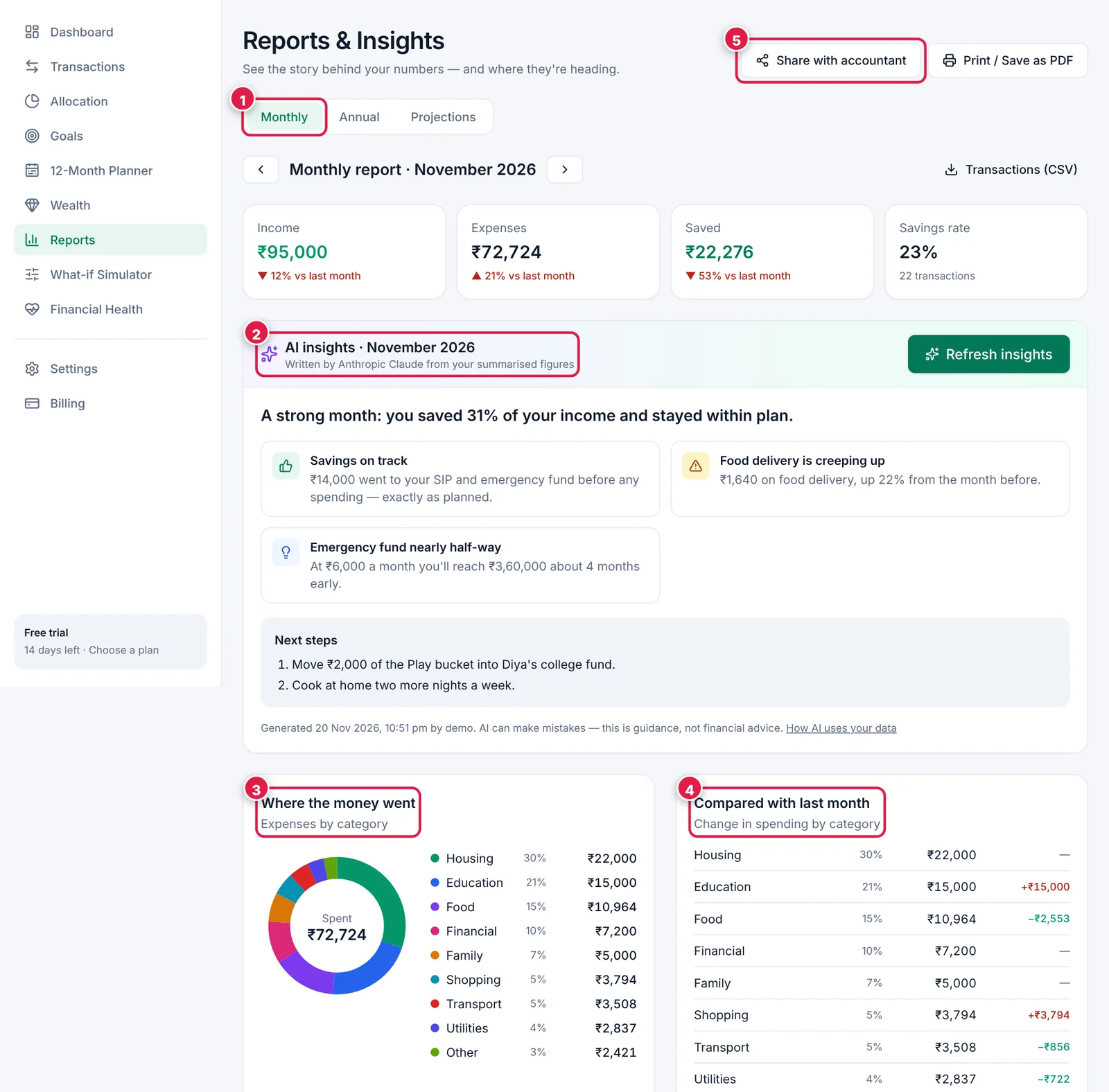
Your monthly report.
- 1. Monthly, Annual or Projections.
- 2. AI insights — headline, highlights and next steps.
- 3. Where the money went.
- 4. Compared with last month.
- 5. Share with accountant.
Ready? It takes about 3 minutes.
Start your free trial