What you get: A whole month of transactions in under five minutes — sorted for you.
About 5 minutes
Why it matters
Typing everything by hand is the number-one reason people give up tracking. Importing your bank or card statement does the boring part for you, so you only spend time on decisions.
Nothing is saved until you press Import. You always review first, so you stay in control.
How it works
- 1Download your statement from net banking as Excel/CSV (best) or PDF (password-protected is fine).
- 2Go to Transactions → Import. Choose the account this statement belongs to and pick the file.
- 3Choose how to read it: Without AI (read on our server using your past choices and rules — nothing is sent anywhere) or With AI (AI suggests categories; account numbers, emails and PAN are hidden before sending).
- 4Press Upload and review.
- 5On the review page, check the suggested category for each row. Duplicates you already have are spotted and unticked for you.
- 6Press Import. Changed your mind? Undo the whole import from Recent imports.
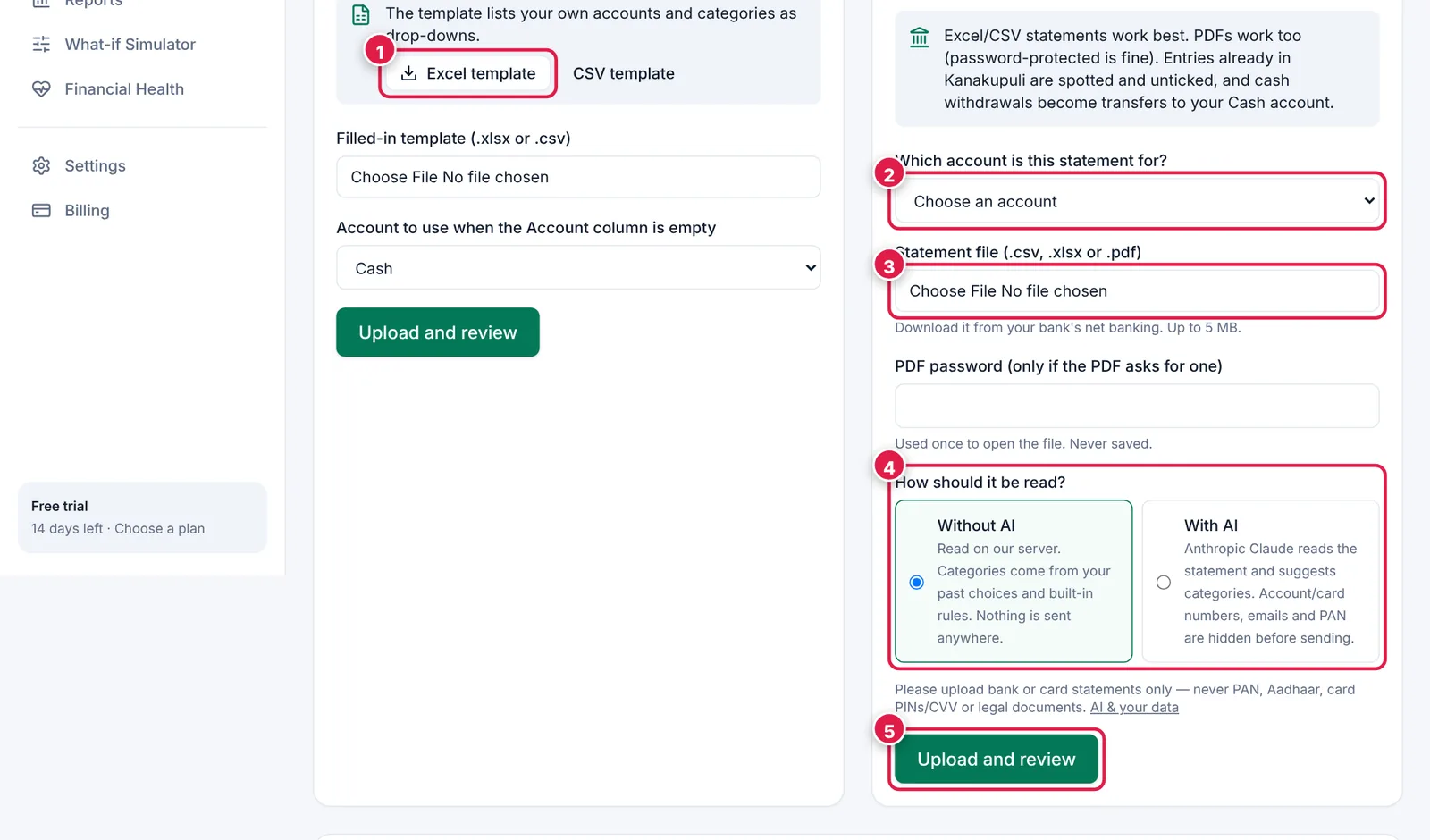
Two ways in: your bank's statement, or our Excel template.
- 1. Excel template — fill in your own records, e.g. cash spends or old notebooks.
- 2. Which account the statement is for.
- 3. The statement file (.csv, .xlsx or .pdf, up to 5 MB).
- 4. Read it without AI or with AI.
- 5. Upload and review.
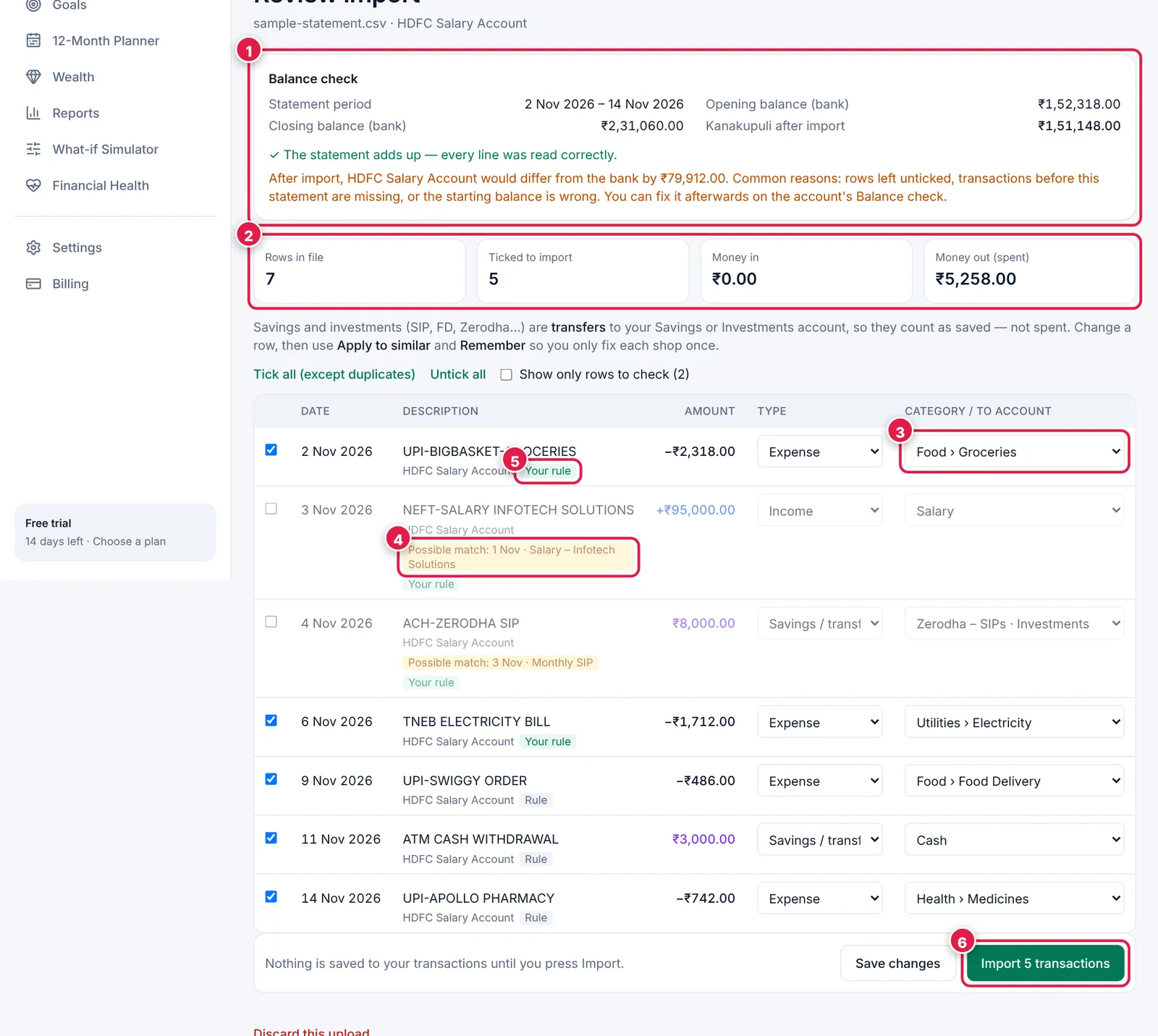
Review before anything is saved.
- 1. Balance check — confirms the statement adds up and whether your account will match the bank.
- 2. How many rows will be imported, money in and money out.
- 3. Suggested category — change it if needed; “Apply to similar” fixes all matching rows.
- 4. Possible match — already in Kanakupuli, so left unticked to avoid double counting.
- 5. Your rule — this row was categorised automatically by one of your rules (Chapter 7).
- 6. Import — only now is anything saved.
Example
“ACH-ZERODHA SIP ₹8,000” is suggested as a transfer to your Investments account — so it counts as saved, not spent.
“ATM CASH WITHDRAWAL ₹3,000” becomes a transfer to Cash.
Ready? It takes about 5 minutes.
Start your free trial